
Getting Started
What is ExpenseBot?
ExpenseBot is an AI-powered virtual assistant that captures, extracts, and organizes your expense receipts using SMS, WhatsApp, or Email — no app download required.
How ExpenseBot Works
- Snap a photo of your receipt
- Send it via SMS, WhatsApp, or Email
- ExpenseBot extracts:
- Vendor
- Date
- Amount
- Tax
- And classifies the expense
- Your expense ledger is automatically updated
Interaction with ExpenseBot on WhatsApp
Submitting a Receipt
· Take a clear photo of your receipt
· Send it to your dedicated Mr.Bizzy number
· You’ll receive a confirmation once processed

—
Updating Expenses
After submitting a receipt, tap and reply to the confirmation message with instructions such as:
- Set Classification to Meals
- Set Project Name to 123 Main Street
- Add a 18% tip
ExpenseBot will update your ledger automatically.
The reply can be a text or voice message.

—
Deleting Expenses
After submitting a receipt, tap and reply the confirmation message: Delete Expense
ExpenseBot will update your ledger automatically.

—
Line Items Handling
If only some line items from a receipt or invoice are required:
- You can instruct Bizzy with item descriptions of the items you want to extract
- Or, instruct Bizzy with the item descriptions you want to exclude
Bizzy will include or exclude the line items accordingly.


—
Advanced Line Item Processing
If Bizzy is instructed to assign different classifications to different line items:
Bizzy extracts the line items individually and assigns the provided classifications
If Bizzy is instructed to assign different project names to different line items:
Bizzy extracts the line items individually and assigns the provided project names
If your subscription includes QuickBooks Online (QBO) support:
Individually extracted line items become separate expenses in QBO
If only some line items from a receipt or invoice are required:
- You can instruct Bizzy with item descriptions of the items you want to extract
- Or, instruct Bizzy with the item descriptions you want to exclude
Bizzy will include or exclude the line items accordingly
—
Setting or removing default project

—
Interact e-transfer expenses
To add e-transfer expenses, take a picture of the Interact e-Transfer confirmation on WhatsApp, specify the classification, and send it to Bizzy.
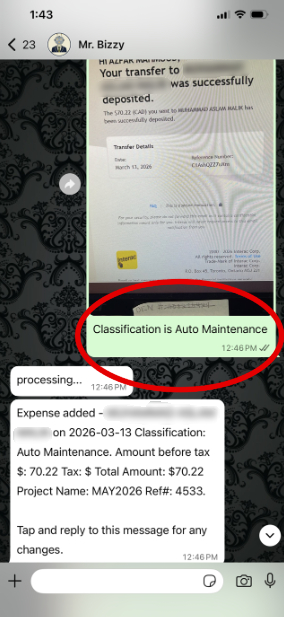
Bizzy will keep the classification. Interact e-transfer to the same recipient after the first time will be classified in the same way.
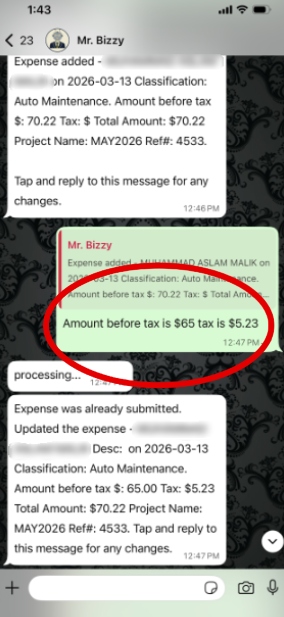
To add tax to the expense, tap and reply to the confirmation received and specify the tax information – see below.
—
Getting Expense Reports
You can request reports directly via WhatsApp/SMS using messages such as:
- Email me January 2026 expense report
- Email me my 2026 expenses
- Email me my 123 Main Street project expenses
You can ask for expense reports:
- By month and/or year – ask for a year or a month in one request
- By Project Name
You will receive in email:
- A downloadable CSV file
- A ZIP file containing digital receipts
- An Excel file with expense details and monthly summary


—
#Inquiry – ask questions on your expenses
You can ask questions about your expenses in plain English by sending a text or voice message:
- For example, “What were my total travel expenses last year? #Inquiry”
- Note: you will have to put #Inquiry at the start or end of the message.
- You will get your answer back, in addition to that you get an analysis of the data related to your question.
Example questions:
- #Inquiry What were my marketing expenses this quarter?
- #Inquiry Which vendors did I spend the most with last month?
- Show my project expenses this month. #Inquiry
- Compare marketing expenses month over month for the current year. #inquiry

Watch this video for information on #Inquiry:

—
#Help
Send #Help to get a link to the help center guide:
You will receive a link to this page
—
Interaction with ExpenseBot via Email – Submit@mrbizzy.com
Submitting Receipts and Invoices
- Email to: submit@mrbizzy.com
- Attach one or multiple receipts and invoices (PDF or images)
- You will receive a confirmation email once processed
—
Updating Expenses via Email
Reply to the confirmation email with instructions such as:
- Set Classification to Travel
- Set Project Name to ABC Project
ExpenseBot will update your ledger automatically

—
Bulk Submission
- Multiple receipts can be submitted in a single email
- ExpenseBot processes each attachment individually and sends confirmation emails
—
Emailing Bank and Credit Card Statement
Bank and credit card statements can be emailed in pdf or csv formats:
- ExpenseBot extracts each transaction as a separate expense and classifies it
- Extracted expenses are email back in a spread sheet for review. Instructions are also provided for data updates.
- Expense data can be updated in the received spread sheet and emailed back – reply to the email received
- To include or exclude selected transactions – provide instructions in the email:
- For example, “Extract expenses for Amazon, Petro Canada and Apple only”
- Alternatively, you can exclude lines – for example, “exclude Walmart lines”


Watch this for more information on Bank and Credit Card statements:

—
Getting Expense Reports
You can request reports via email:
- Email me January 2026 expense report
- Email me my 2026 expenses
- Email me my 123 Main Street project expenses
You can ask for expense reports:
- By month or year – ask for a year or a month in one request
- By Project Name

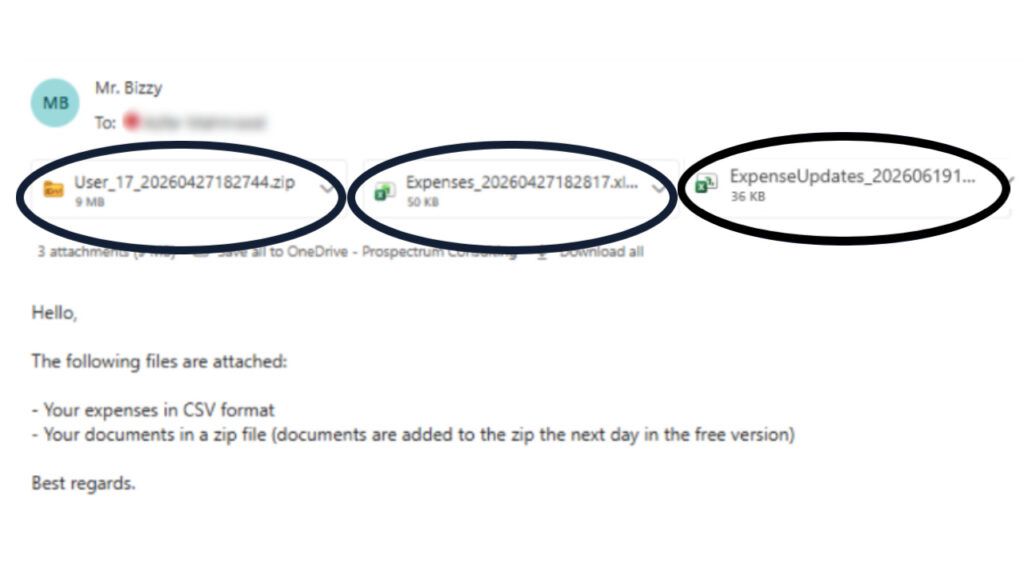
You will receive in email:
- A downloadable CSV file
- A ZIP file containing digital receipts
- An Excel file with expense details and monthly summary
—
Expense Data Updates
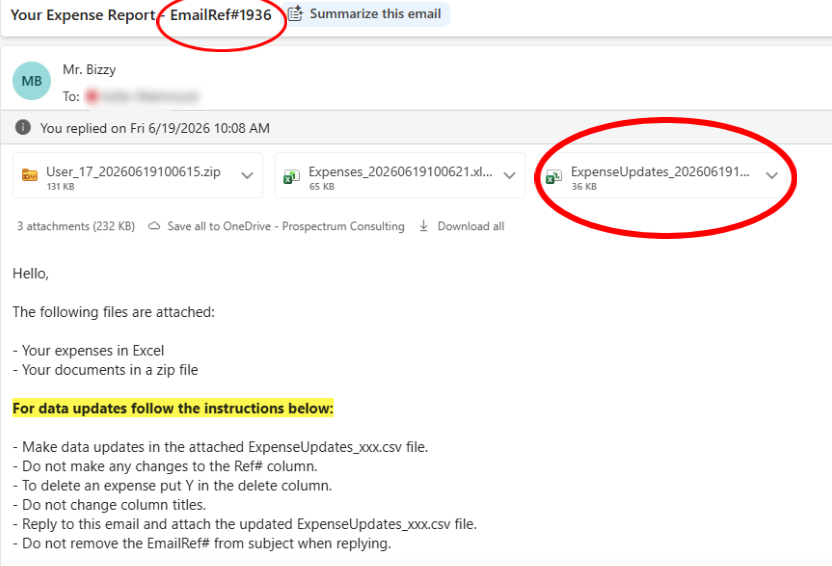
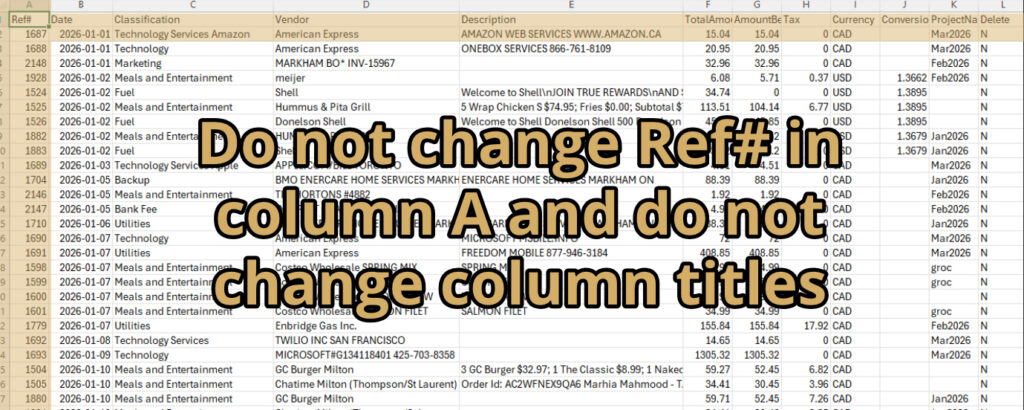
You can make expense data updates by updating the ExpenseUpdates_XXX.csv file received via email with your expense report. Please follow the following instructions when updating the data in the csv file:
- Do not make any changes to the Ref# column.
- To delete an expense put Y in the delete column.
- Do not change column titles.
- Reply to this email and attach the updated ExpenseUpdates_xxx.csv file.
- Do not remove the EmailRef# from subject when replying.
—
#Help
Email #Help to receive a link to the help center guide:

—
Frequently Asked Questions
Do I need to download an app?
No. ExpenseBot works through WhatsApp, and Email.
—
How accurate is receipt extraction?
ExpenseBot uses AI-powered OCR and NLP technology to extract:
- Vendor
- Date
- Subtotal
- Tax
- Total
—
What types of expense documents are supported?
- Paper receipts (send photo via WhatsApp)
- Email receipts (PDF or image)
- Invoices and utility bills
- Travel expenses
- Bank and Credit Card Statements
—
Is my data secure?
Yes.
- All uploaded files are encrypted at rest using AES-256 encryption
- Sensitive extracted information from expense documents is protected using AES-256 field-level encryption
- All data transmitted between customers and our platform is protected using TLS/HTTPS encryption to ensure secure transfer
—
How to Purchase
- Go to: https://mrbizzy.com/expensebot
- Select Buy Now
- Choose your plan and number of users/scans
- Select Proceed to Checkout
- Enter payment details and select Subscribe
- You will receive an email with setup instructions

—
Best Practices
- Submit receipts immediately after purchase
- Use consistent classifications
- Add project/job codes when applicable
- Review summaries regularly
- Prepare reports ahead of tax season